

What is the point of showing 6 ways to control the volume in Windows 11
Because sometimes one of the known methods to control the volume may not work, the volume control button (which is on your keyboard) may not work then you will learn another method from the system, and so on for the rest of the methods for some of them, follow the following methods to learn about 6 methods To control the volume in Windows 11using the mouse
Using the mouse you can control the volume in Windows 11, how? The methods are not limited to the keyboard or the traditional methods in the system, but using the mouse you can also control the volume, how is that?Point the mouse cursor towards the volume mark in the taskbar..then scroll the mouse wheel until you control the volume (up to increase the volume / down to decrease the volume)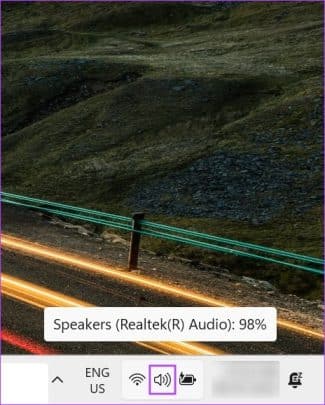
Using the control button on the keyboard
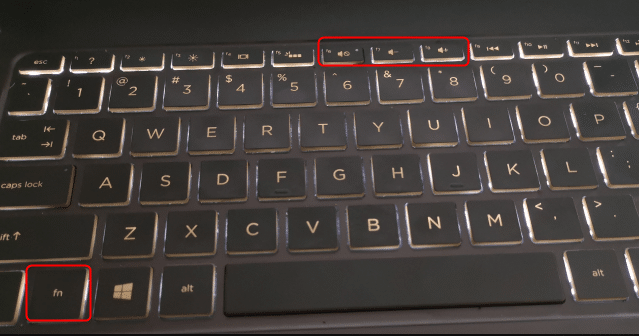
Separate keyboards or laptops these days often come with control buttons, which are shortcuts to control many settings in the system, what if it's from a laptop?In the case of a laptop keyboard: Press the FN button while pressing the volume control buttons to control it successfully.
In the case of a separate keyboard: just press the control button.
through quick settings
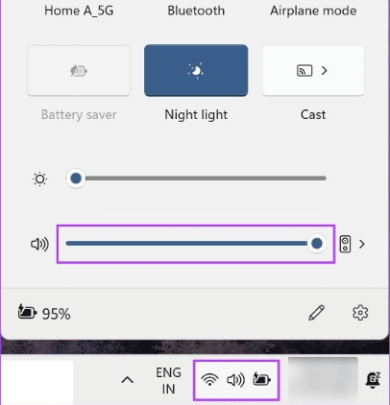
The quick settings menu in Windows 11 is one of the great things in its interface design, it is not a huge thing, but it is a nice thing for quick control of the basic settings in your system, such as Wi-Fi, Bluetooth, and the volume for sure! So head to the quick settings menu to control the volume in Windows 11, as follows:Press the Windows key + A to open the quick settings menuThen move the cursor left and right to control the volume
through the settings menu
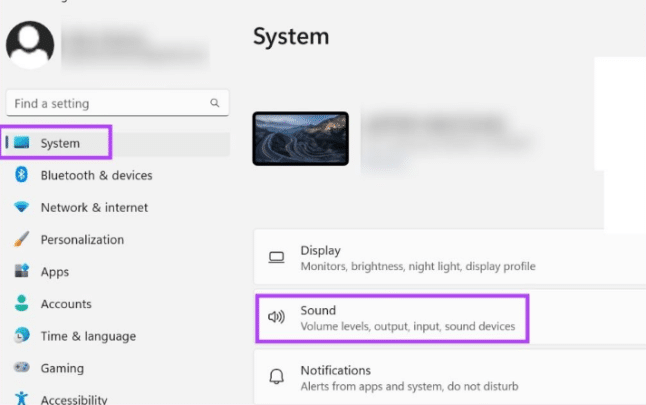
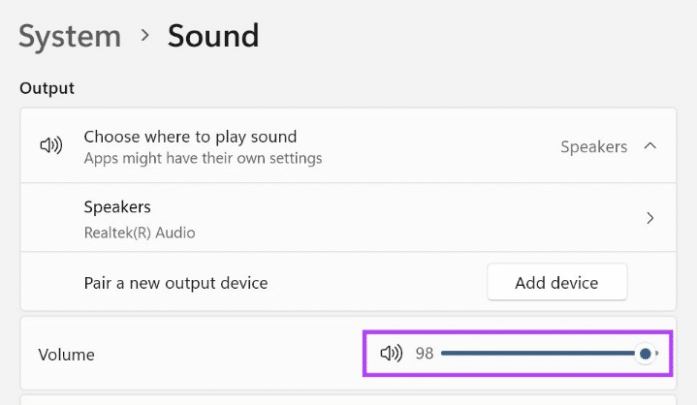
Settings menu which is the full version of the quick settings menu! There are all settings, whether primary or secondary, and one of these settings is the sound. Volume control can certainly be done through the settings menu, and you can access it as follows:Press Windows key + l to open the Settings menu.Click on system in the settings menu
Then click on sound..to control the volume
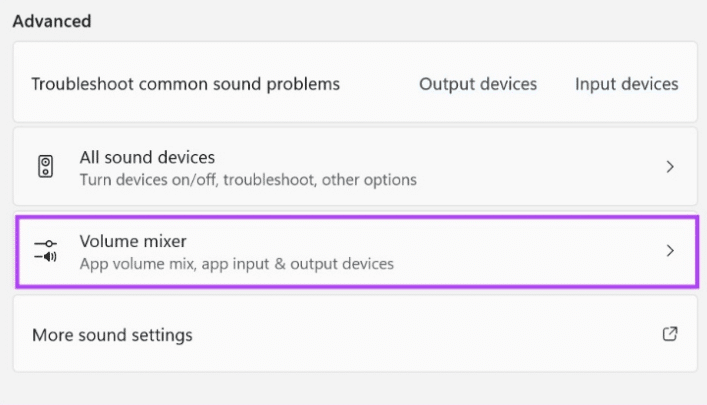
What if I want to control the volume for certain apps?Scroll down a little in the same previous interface (Sound) to tap on Volume mixer to control the volume for specific apps separately.
through the control panel
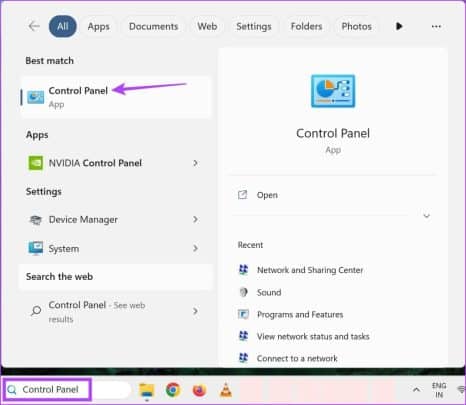
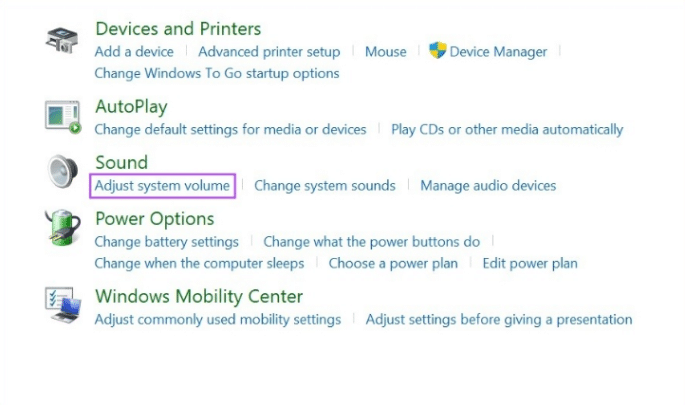
The control panel is also from which you can do that, as you can control the basics in your system, such as applications, associated devices, etc., and the volume for sure! This is in the following way:Open the system search box and search for Control Panel and open it
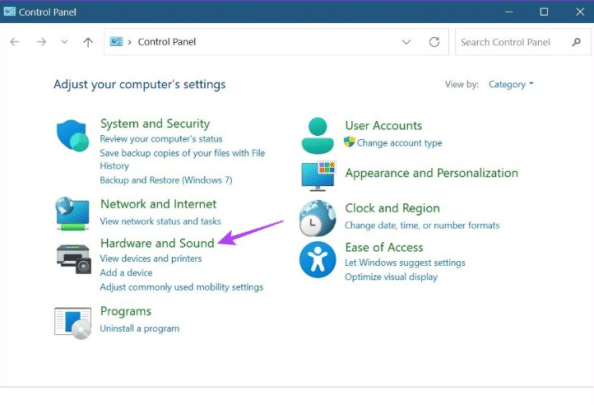
Open Hardware and sound
Then, in the sound option, click on Adjust system volume..then you will be able to control the volume in your Windows 11.
Click on the sound icon in the control bar
Then in the menu that will pop up for you, press MIXThen you will be able to control the sound for the system and some apps individually
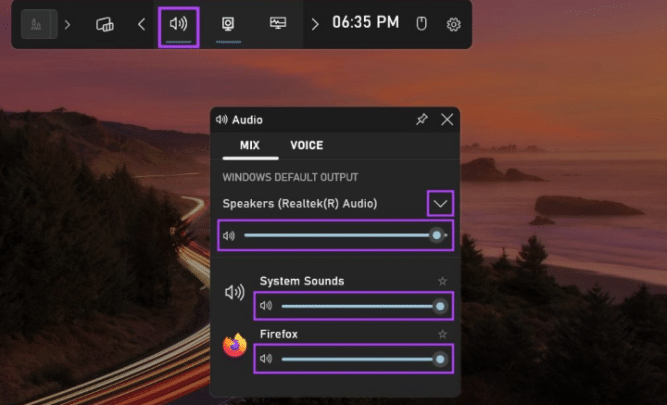
Through the XBOX Control Bar
It is specific to games, where it is a bar for quick control of some quick system settings, and this is certainly like sound, so you can also control the volume in Windows 11 through the XBOX bar, as follows:Press Windows key + G to open the XBOX barClick on the sound icon in the control bar
Then in the menu that will pop up for you, press MIXThen you will be able to control the sound for the system and some apps individually