
The 7 best solutions to the problem of Google Chrome not opening new tabs in Windows 11..Google Chrome is one of the most popular and most used browsers when it comes to surfing the Internet, but you may encounter a problem with the simplest things..such as facing a problem that Google Chrome does not open tabs New in Windows 11 specifically, and next we will talk about possible solutions to the problem of Google Chrome does not open new tabs in Windows 11! Continue to find out more.

Restart Google Chrome
If you encounter a problem with tabs not opening, then there are many solutions through which you can solve your problem, and we can start with a restart . A new tab in Windows 11..and this is as follows:
- Press alt + ctrl + delete to open the task manager
- Then right-click on Google chrome to select End task to close it permanently

Then open Chrome again and see if the problem of Google Chrome not opening new tabs has been resolved.
Clear temporary files for google chrome
Like other applications and browsers in particular..Google Chrome saves temporary files while you are using it, and those temporary files are made up of images and information of the web pages you visit and this is the normal situation, you can delete temporary files so that you can reformat Google Chrome to solve the problem of Google Chrome not opening bookmarks A new tab in Windows 11..and this is as follows:- Open Google Chrome
- Then click on the three vertical dots at the top right of the page, then click settings to open the settings
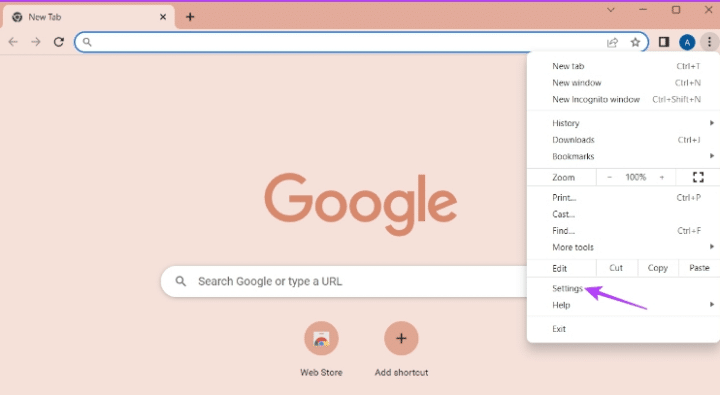
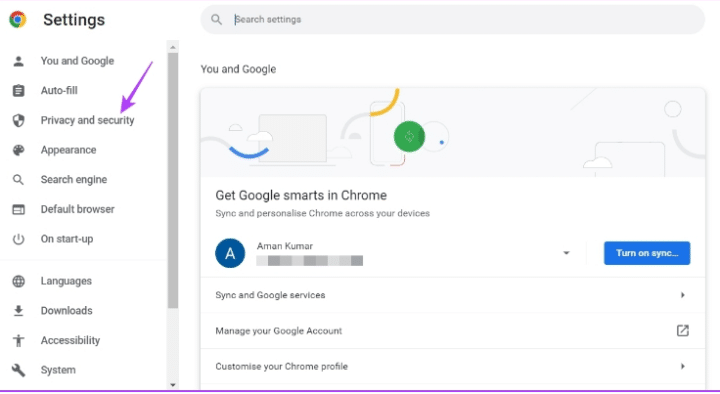
- Then choose Privacy and security
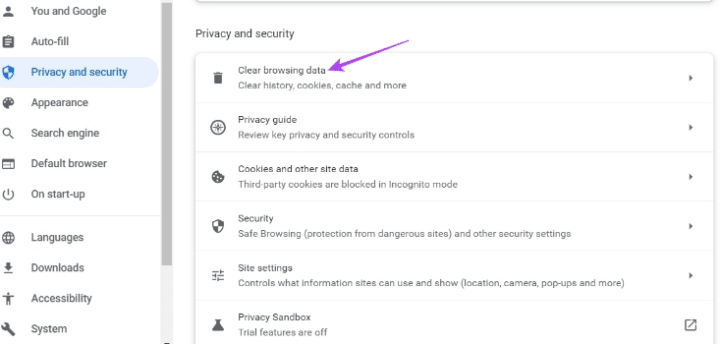
- Then choose clear browsing data
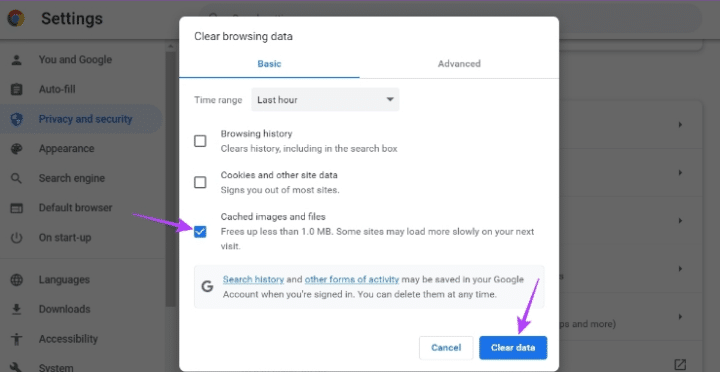
- Then first choose Cached images and files..
- Then confirm clearing temporary data by pressing clear data
Remove unnecessary extensions from Google Chrome
Extensions are an important feature in the Chrome browser, as they serve to facilitate use for many purposes for which you may need extensions, but unfortunately they can sometimes be a burden on the browser, which may cause one of these problems, so remove unnecessary extensions to see Whether this solves the problem of Google Chrome not opening new tabs or not! This is as follows:
- Open Chrome
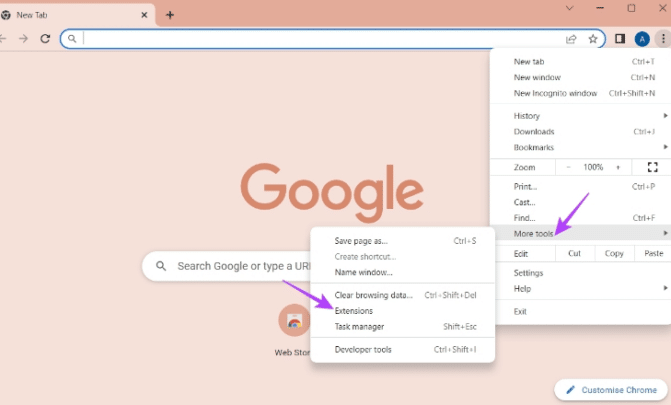
- Then click on the three vertical dots to choose more tools/ then choose extensions
- Then deactivate all add-ons by deactivating them from the activation indicator
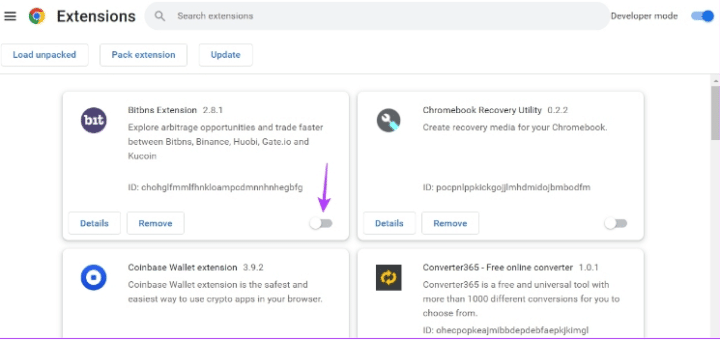
Then restart Google Chrome, problem solved? If one of these extensions is causing the problem of Google Chrome not opening new tabs!
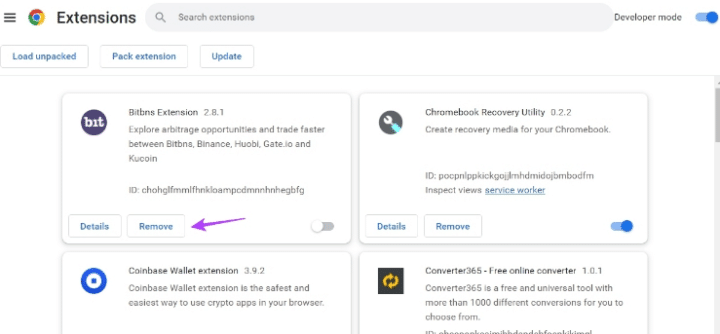
Therefore..then by re-activating them one by one, and after activating each add-on, see if the problem returns or not, and with the add-on that you explore, the problem of not opening tabs returns! Delete it immediately..and this is as follows:
- choose remove
Windows Update
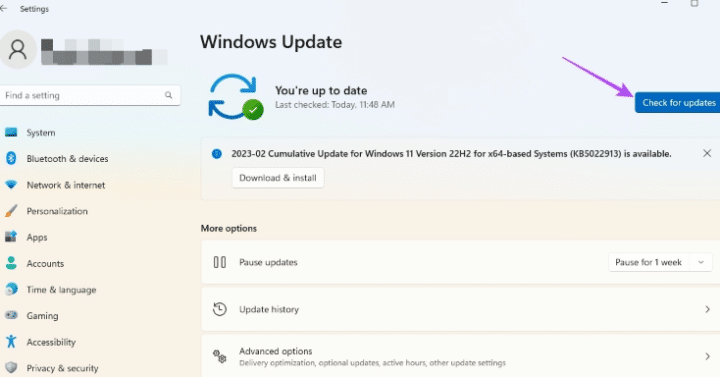
Windows update is generally necessary while you are using your computer, as the system may be exposed to a problem or malfunction, which may be resolved by simply updating Windows to the latest version sent by Microsoft for the update, so go to update Windows (if a new update is available) to see if This solution to the problem of Google Chrome does not open new tabs in Windows 11 or not..and this is as follows:- Press the Windows sign + I to open the Settings application, then go to windows updates
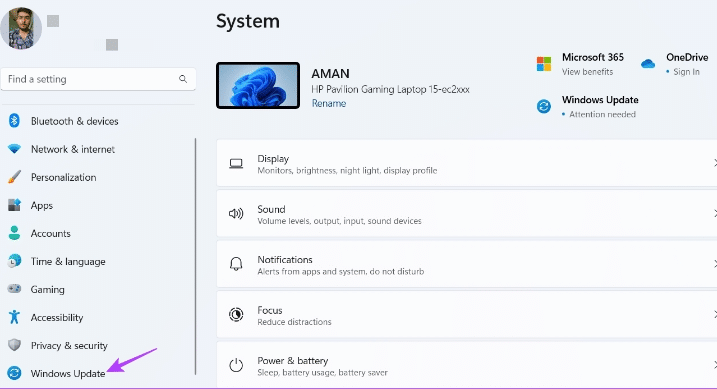
- Then click on check for updates to check for new updates
Google chrome update
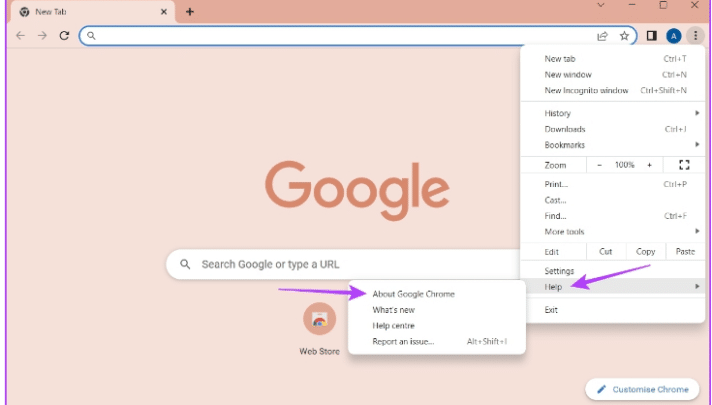
Similar to making sure that the system is updated to the latest version..you must make sure that Google Chrome is also updated to the latest version, and this is because updating Chrome is the first responsible for the problems that we seek to solve in it, and therefore you must check to see if it has been updated to the latest version or needs to be updated ..and this is as follows:- Open Chrome
- Then click on the three vertical dots..then select help / then select About google chrome
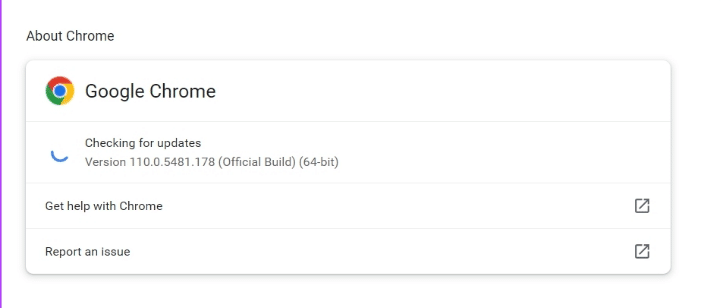
- Then everything will happen automatically; It will scan for any updates to be installed
Reconfigure Google Chrome
Reformatting Chrome is one of the solutions that we can address and is also a final solution! But we mention it in the latest solutions because it is a definitive step to remove all temporary files and remove additions and all data and settings created by you, because it returns to its default, which can solve the problem of Google Chrome not opening new tabs in Windows 11! This is as follows:
- Open Google Chrome
- Then click on the three vertical dots to choose settings to open the settings
- Then choose reset and clean up
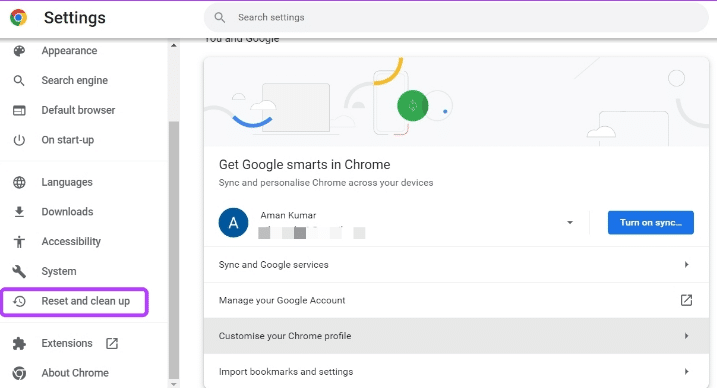 Then choose Restore settings to their original default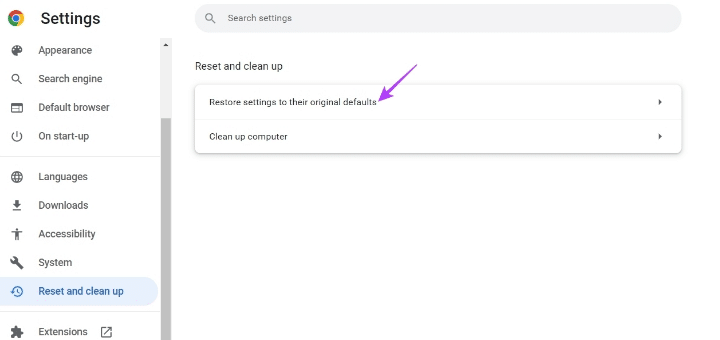
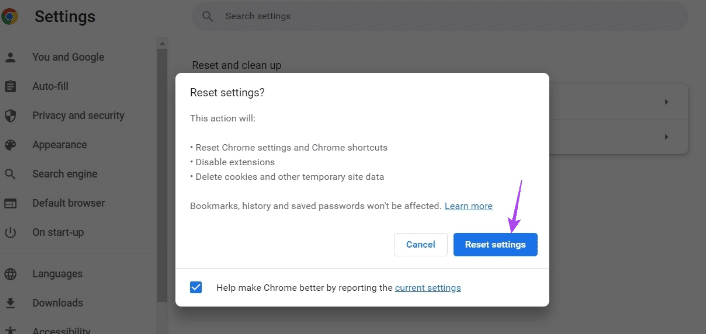
- Then confirm..then see if the problem of Google Chrome not opening new tabs has been resolved or not
Create a new User
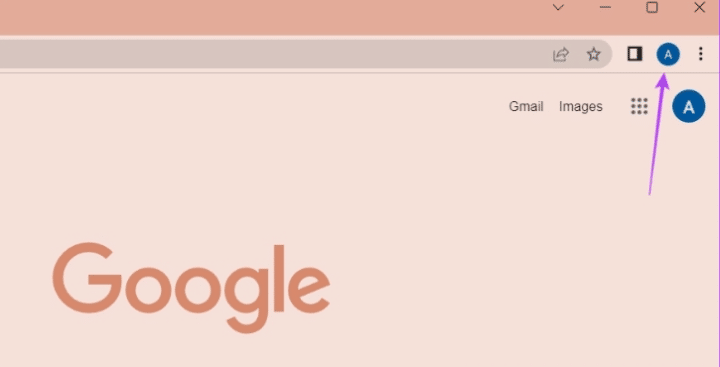
Creating a new user is like creating a new profile, the problem may be related to your current profile only, or you can reveal this by creating a new user or profile to see if this solves the problem of Google Chrome not opening new tabs in Windows 11 or not! This is the following steps:Open Google ChromeClick on the Open Profile button
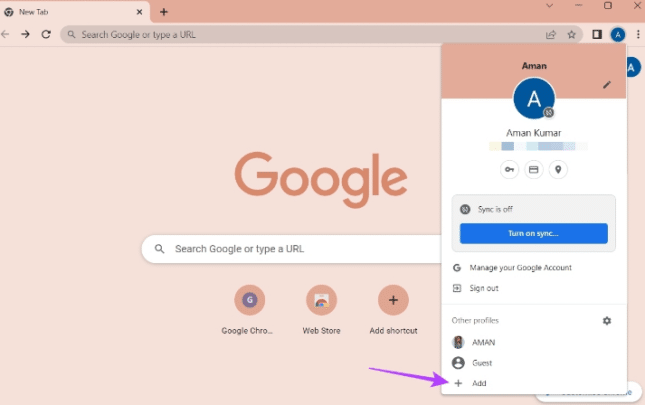
Then choose Add to add a new user
Then Chrome will choose whether you want to register with your Google account or continue without registering (it is better to register so that all your data is synchronized)
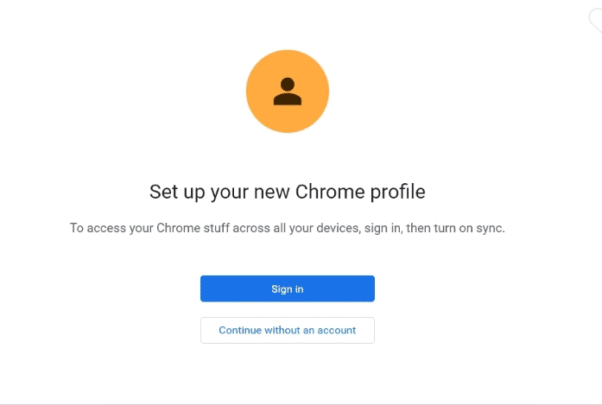
Then whether you signed up or not..then try Chrome in the new profile to see if the problem of Google Chrome not opening new tabs is resolved or not.
Then whether you signed up or not..then try Chrome in the new profile to see if the problem of Google Chrome not opening new tabs is resolved or not.