

The best way to know the password of the Wi-Fi network on the computer
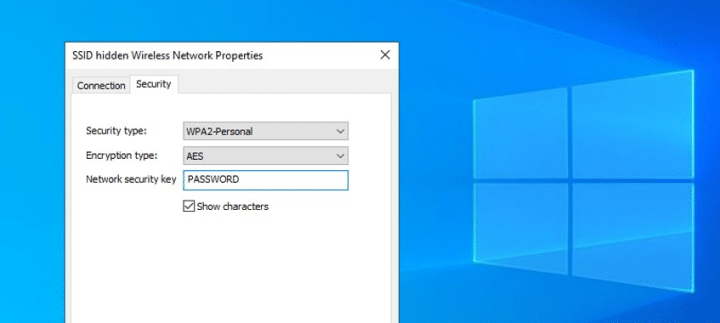
Next, we learn about the best methods that we could collect, so that this article will be your first reference for detecting the Wi-Fi code connected to your device: –
Expose the network icon from the control panel
- Open the control panel on your computer, then select “Network and Internet ”.
- Then click on “Network and Sharing Center” and then click on the name of your Wi-Fi network
- Then click on “Wireless Properties” and then head to the “Security” section.
- Then click next to the word “Show characters” so that you can reveal your network code.
Detect the Wi-Fi code from the Windows system settingsOpen Windows Settings
- Then choose Network and Internet
- Then choose Change adapter settings
- Then by clicking on the name of your Wi-Fi network
- Then click on Wireless Properties as in the previous method
- Then go to the Security section to click on the box next to Show characters so that you can know the password of your Wi-Fi network.
Know the password of the Wi-Fi network through the Command Prompt
- Open the system search box and type cmd to get to the command prompt
- Then type the following command when it opens successfully:-netsh wlan show profiles
- Then, after pressing Enter, type the following command and press enter:-netsh wlan show profile name=
- wifi name key =clear
- With this, you will be able to successfully detect the network code.
Detect Wi-Fi code via Run menu
- Press Windows + R button to open the Run menu
- Then type the following command: ncpa.cpl and click OK
- Then right click on the WiFI icon and select status
- Then choose Wireless Properties from the menu that appears in front of you
- Then go to the Security menu.. Then you can find out the Wi-Fi password by clicking on the indicator of show characters.
How to find out the Wi-Fi password on the iPhone
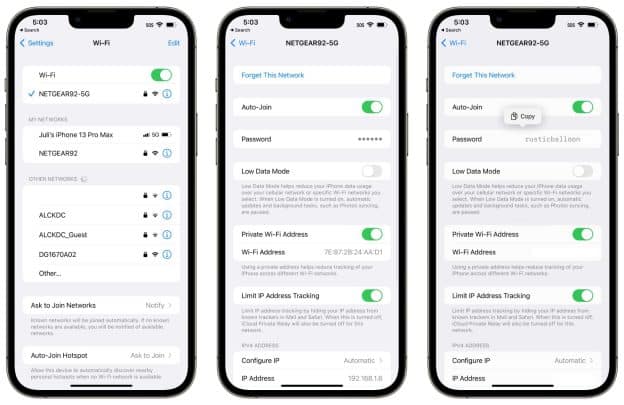
Now we move on to how to detect the Wi-Fi code on iPhone phones: –
Detect the wifi code through the phone settings
- Head to Wi-Fi setup
- Then click on the exclamation mark next to the network name “Details”.
- Click on the password field, and after confirming your identity, your network code will be revealed.
- Head to Wi-Fi setup
- Then click on the edit icon in the top left of the screen
- After confirming your identity, you will see the networks you have connected to
- Click on the i icon next to the network name to go to the details
- Then you will be able to know the password of the Wi-Fi network in the password field
Reveal the network code through the router settings
- pageHead to 192.168.1.1
- Then register on the router settings page
- Then go to the wireless settings or according to the method of accessing the password settings in your router settings
Detect wifi code from wifi passwords appYou must first download the Cydia store to download the Wifi Passwords application, as it is a store to download applications that are not found on the iPhone app store
Then search for the Wifi Passwords app
After opening the application, you will find the Wi-Fi networks that you have connected to, and under each network its password, so you can know the Wi-Fi password.
How to find out the wifi password on android
- Next, we learn about the best ways to know the password of the Wi-Fi network from your Android phones: –
- Detect the network icon from the phone settingsGo to phone settings..then to Wi-Fi setup
- Then click on the network whose network code you want to reveal
- Then press “Share”
- After confirming your identity..the password will appear to you above the barcode that will appear for you to participate.
- Reveal the network icon from the router settings pageHead to 192.168.1.1
- Then log in to the router settings page
- Local internet section moved
- Then head to WLAN
- Then bring up the WLAN SSID Configuration
- Then click on the show password indicator when setting up the WPA Passphase to be able to know the Wi-Fi password
With this, we have shown the best ways for all devices to be able to reveal your network code.