
Learn how to create a folder password on Windows 10 without using any programs. Follow our step-by-step guide to secure your folders and protect your sensitive data.

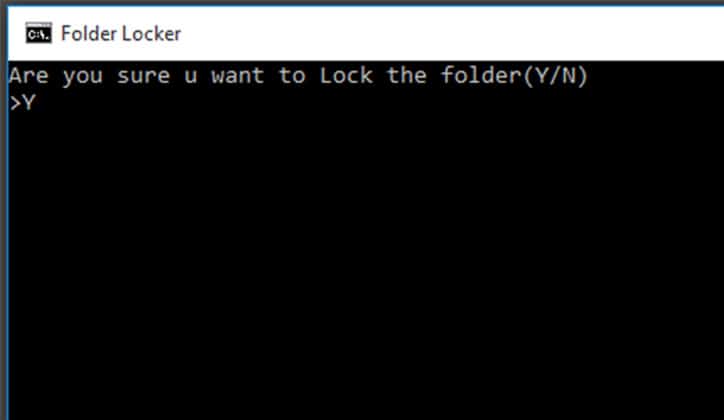
Here's how to put a password on the folders you want to lock and keep them out of reach.
How to set a password for a folder in Windows 10
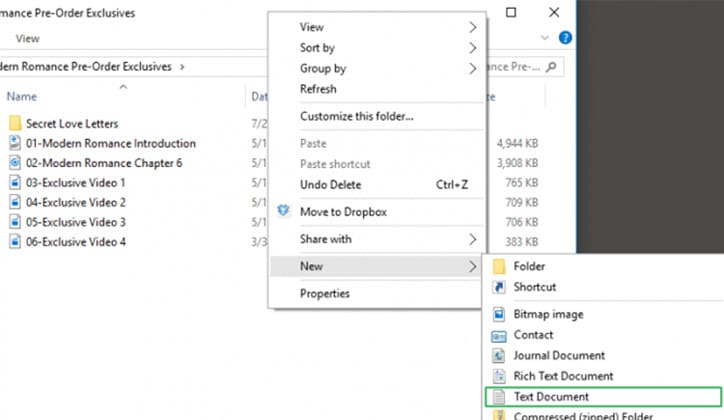 Right-click on the folder in which the files you want to protect are located, then select New and click on Text Document.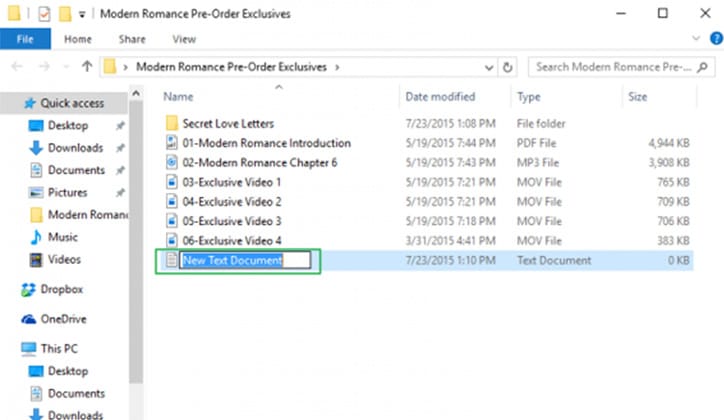
Press Enter and name it whatever you want, you will not need it after setting a password for the folder and you can delete it later.
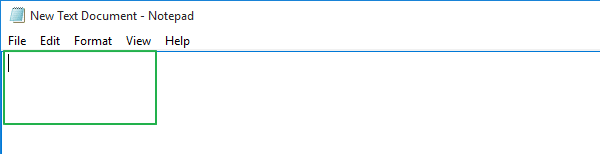
Open the text file and copy the following code into it:
cls
@ECHO OFF
title Folder Locker
if EXIST “Control Panel.{21EC2020-3AEA-1069-A2DD-08002B30309D}” goto UNLOCK
if NOT EXIST Locker goto MDLOCKER
:CONFIRM
echo Are you sure u want to Lock the folder(Y/N)
set/p “cho=>”
if %cho%==Y goto LOCK
if %cho%==y goto LOCK
if %cho%==n goto END
if %cho%==N goto END
echo Invalid choice.
goto CONFIRM
:LOCK
ren Locker “Control Panel.{21EC2020-3AEA-1069-A2DD-08002B30309D}”
attrib +h +s “Control Panel.{21EC2020-3AEA-1069-A2DD-08002B30309D}”
echo Folder locked
gotoEnd
:UNLOCK
echo Enter password to Unlock folder
set/p “pass=>”
if NOT %pass%==Your-Password-Here goto FAIL
attrib -h -s “Control Panel.{21EC2020-3AEA-1069-A2DD-08002B30309D}”
ren “Control Panel.{21EC2020-3AEA-1069-A2DD-08002B30309D}” Locker
echo Folder Unlocked successfully
gotoEnd
:FAIL
echo Invalid password
goto end
:MDLOCKER
mdlocker
echo Locker created successfully
gotoEnd
:End
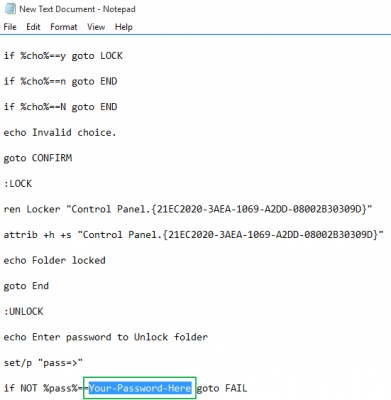
Search for the word Your-Password-Here from the code after copying it into the file and replace it with the password you want.
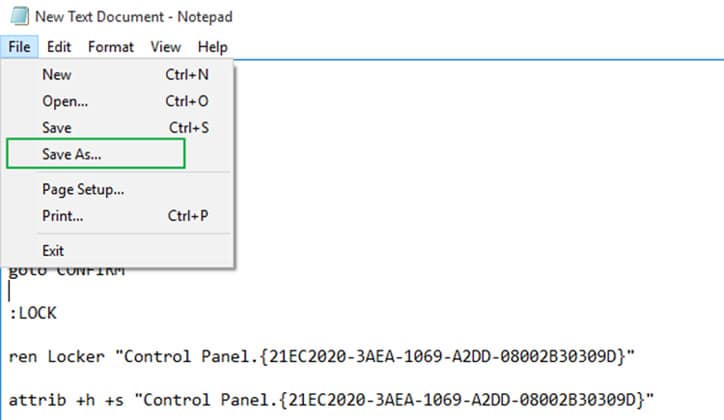
Then click on File and choose Save As.
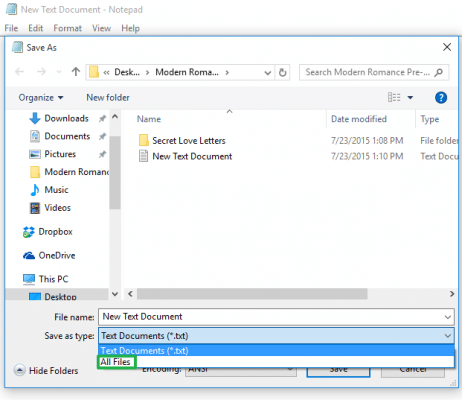
Then click on Text Document (*.txt*) next to the word Save as type: to open the menu, and choose All Files from this list.
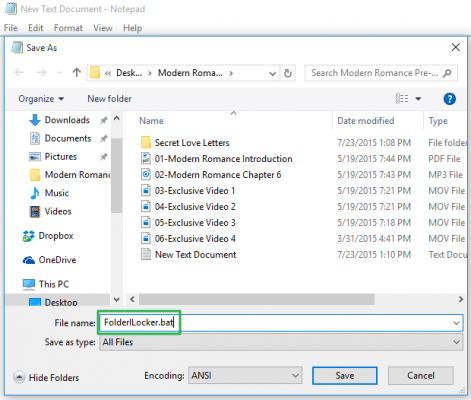
Rename the file to bat and click Save.
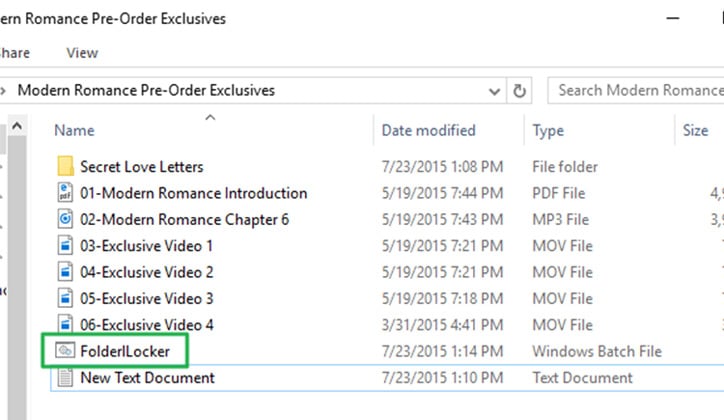
A file named FolderLocker will appear, as shown in the previous image, by clicking on it.
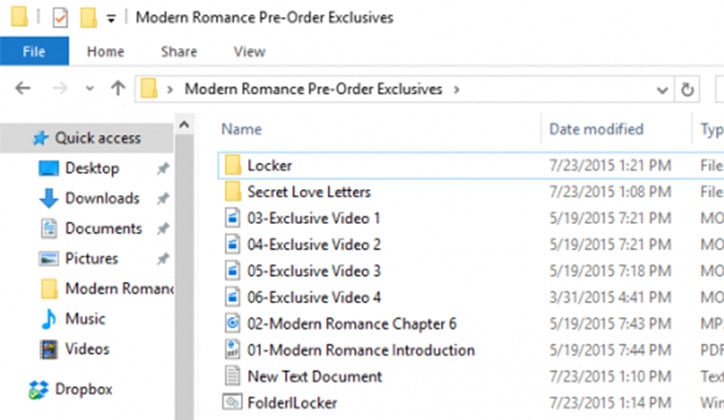
When you click on it, a new protection folder named Locker will be created, as shown in the previous image. Copy all the files that you want to protect inside, and then click again on the FolderLocker file from the previous step to create the password.
Then click on File and choose Save As.
Then click on Text Document (*.txt*) next to the word Save as type: to open the menu, and choose All Files from this list.
Rename the file to bat and click Save.
A file named FolderLocker will appear, as shown in the previous image, by clicking on it.
When you click on it, a new protection folder named Locker will be created, as shown in the previous image. Copy all the files that you want to protect inside, and then click again on the FolderLocker file from the previous step to create the password.
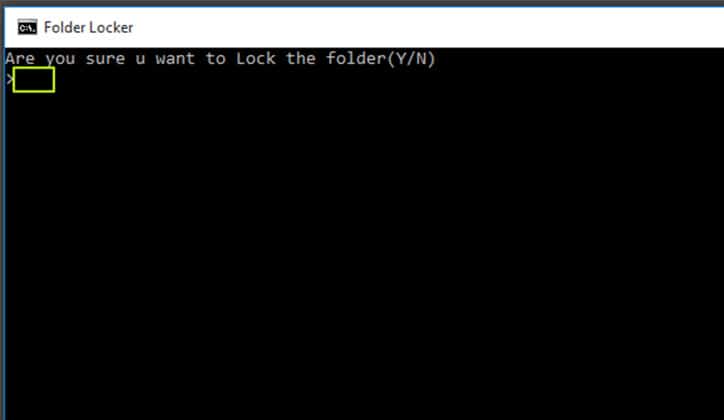
This black screen will appear to you to confirm the activation of the password, type “Y” in the place shown in the image and press Enter, and the black screen and the Locker folder will disappear as well, and thus the password has been created successfully.
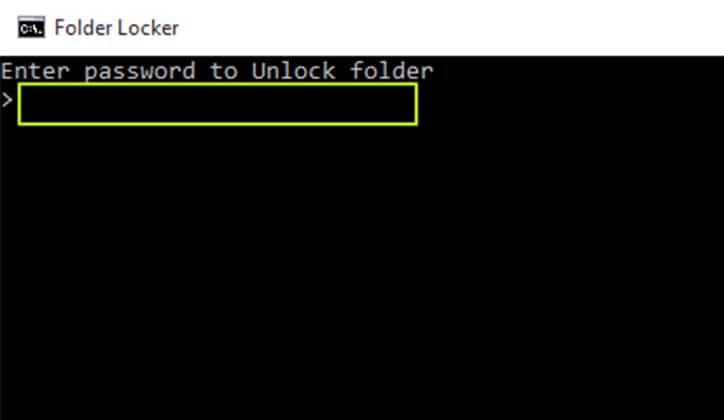
Now to open the folder again to use it, click on the FolderLocker file, then type the password you chose and press Enter.
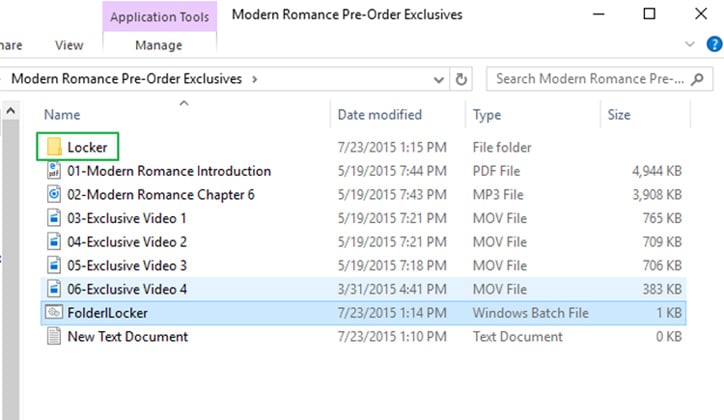
The Locker folder will appear again so that you can use it, and if you want to close it after you are done with it, just do steps 9, 10 again.
العلامات: